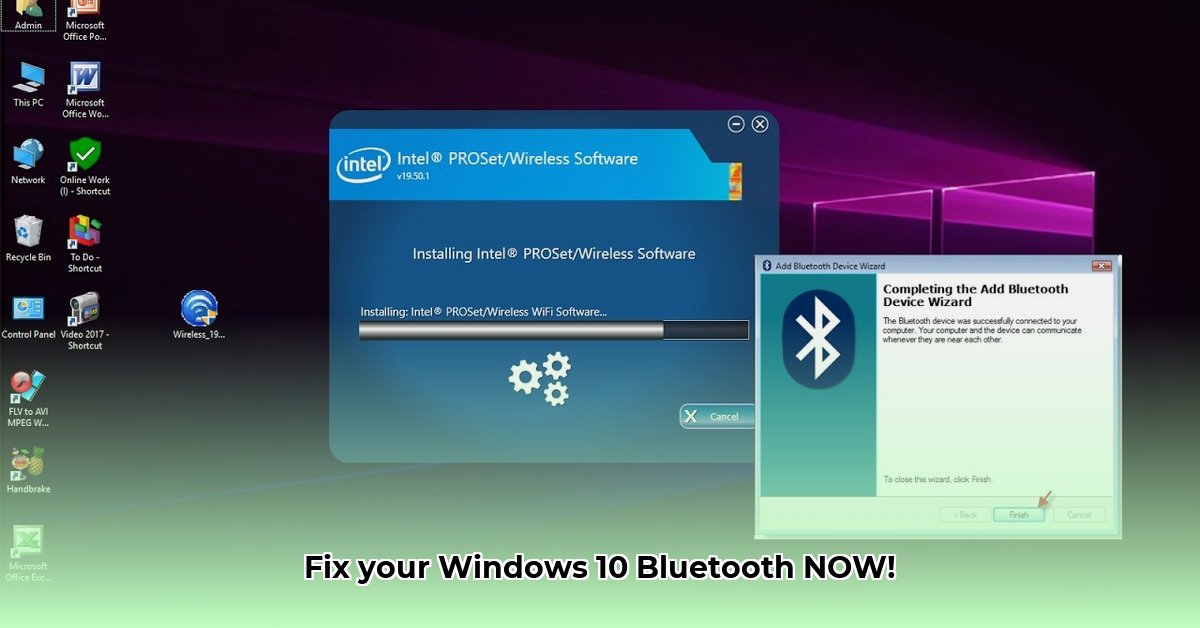
Getting Started: Why Update Your Bluetooth Driver?
Experiencing Bluetooth connectivity issues on your Windows 10 PC? Dropped connections, slow transfer speeds, or general unreliability? Updating your Intel Wireless Bluetooth driver to version 23.120.0 might be the solution. This guide provides a step-by-step walkthrough, ensuring a smooth and successful update. This update offers improved performance, stability, and compatibility, making your wireless experience significantly better. But before we begin, let's address why this update is important. Do you want to enjoy seamless Bluetooth connectivity and enhanced performance? Then read on!
Prerequisites: Before You Begin
Before you start the download and installation, make sure you meet these requirements:
Active Internet Connection: A stable internet connection is crucial for a smooth download. A slow or interrupted connection can lead to incomplete downloads and installation failures.
Administrator Privileges: You need administrator rights on your Windows 10 computer to install the new driver. This ensures the installer has the necessary permissions to modify system files.
Manufacturer-Specific Drivers: Check your computer manufacturer's (e.g., Dell, HP, Lenovo) website before installing the Intel driver. Manufacturer-specific drivers may offer better compatibility and stability than generic Intel drivers. This is especially important for laptops with customized hardware configurations. Are you using a manufacturer-specific driver already? This is worth double checking before proceeding.
Bluetooth Device Disconnection (Crucial for Certain Adapters): If you're using an Intel Wireless-AC 9560, 9462, or 9461 adapter, disconnect all Bluetooth devices (headphones, mouse, keyboard, etc.) before updating the driver. This preventative measure significantly reduces the chance of conflicts during installation. Even simple steps like this reduce the margin for error.
Downloading Intel Wireless Bluetooth Driver 23.120.0: Two Simple Methods
You have two straightforward options for downloading the driver:
Direct Download from Intel: Visit the official Intel website (https://www.intel.com/content/www/us/en/download/18649/intel-wireless-bluetooth-drivers-for-windows-10-and-windows-11.html) and search for "Intel Wireless Bluetooth drivers." Download the installer compatible with your Windows 10 version (likely 64-bit). This method ensures you get the authentic driver directly from the source, minimizing the risk of malware.
Intel Driver & Support Assistant: This utility automatically scans your system for outdated drivers. Download and run the assistant (available on the Intel website); it will identify your hardware and suggest the necessary updates, including 23.120.0. This is the more convenient choice, especially if you are unfamiliar with manual driver downloads and installations. Have you considered using the Intel Driver & Support Assistant for ease of use?
Installation: A Step-by-Step Guide
Once downloaded, follow these steps:
Locate the Installer: Find the downloaded file (typically an
.exefile).Run the Installer: Double-click the file to begin the installation. Follow the on-screen prompts.
Restart Your Computer: After the installation, your system might prompt you to restart. This is necessary for the changes to fully take effect and ensure the new driver is correctly implemented.
Verify Installation: After the restart, reconnect your previously disconnected Bluetooth devices and test if connectivity improvements are noticeable.
Post-Installation: Reconnecting and Testing
After restarting, reconnect your Bluetooth devices. Test their functionality. Do you experience a better connection? Many users report significantly improved connection speeds and reliability after this update.
Troubleshooting: Addressing Common Issues
Encountering problems? Here's what to try:
Connectivity Problems: Restart your computer. Check your Bluetooth adapter settings in Windows settings (search for "Bluetooth and other devices"). Ensure the adapter is enabled and configured correctly.
Driver Conflicts: If you encounter driver conflicts, uninstall any prior Bluetooth drivers via the Windows Device Manager (search for "Device Manager" in Windows) before installing the Intel driver.
Persistent Issues: If problems persist, consider uninstalling and reinstalling the 23.120.0 driver. This fresh installation can often resolve underlying conflicts.
Important Considerations: Discontinued Support and Manufacturer Drivers
Remember that this driver update discontinues support for certain older Intel Wireless adapters (7265 Rev. D, 3168, 3165, 8260, 8265). If you have one of these cards, you may need to use a different approach or an older driver. Always refer to Intel's website to check the compatibility of your wireless adapter.
Conclusion: Maintaining Optimal Bluetooth Performance
Updating your Intel Wireless Bluetooth driver to version 23.120.0 can improve connectivity, speed, and overall reliability. Regularly checking for driver updates ensures optimal performance and system security. By following the steps outlined above, you can significantly enhance your Windows 10 Bluetooth experience. Do you have any other questions or experiences updating Bluetooth drivers? We'd love to hear about them.
⭐⭐⭐⭐☆ (4.8)
Download via Link 1
Download via Link 2
Last updated: Sunday, April 27, 2025